
Docker Compose on VPS: Multi-Container App Deployment
Your application isn't just a single process anymore. Docker Compose lets you define your entire multi-container application in a single file, spin up all services with one command, and deploy everything to your VPS consistently—every time, on every machine.
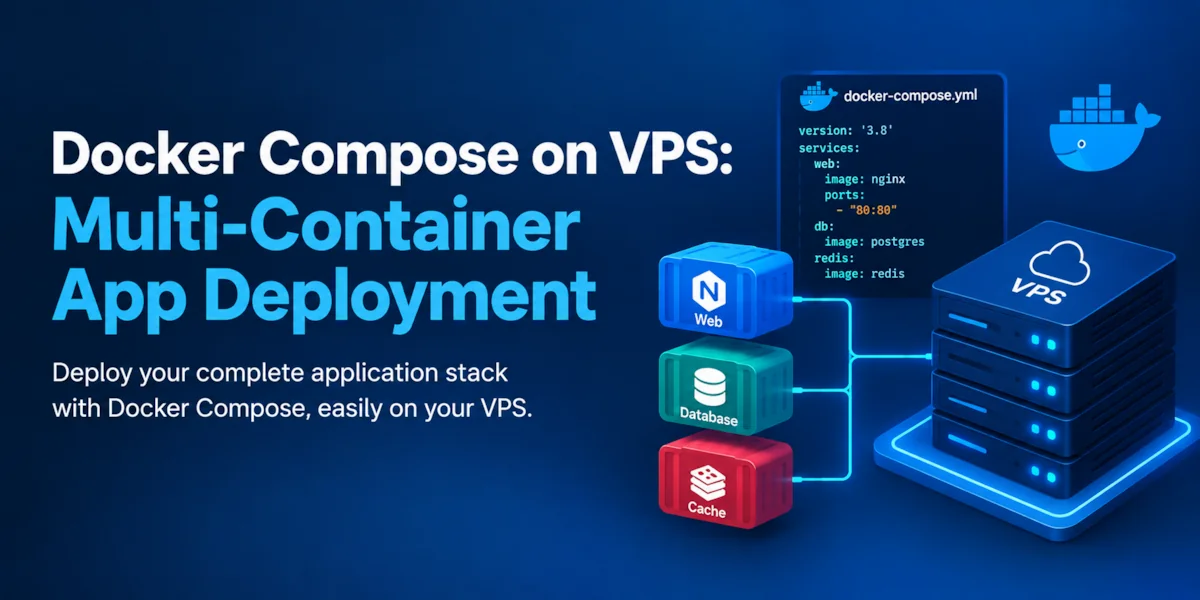
Your application isn’t just a single process anymore. You have a web server, a database, a cache layer, and maybe a background job queue. Running all of these on a single VPS without containerization is chaotic: different dependencies, version conflicts, and no isolation between services.
Docker Compose solves this problem. It lets you define your entire multi-container application in a single file, spin up all services with one command, and deploy everything to your VPS consistently—every time, on every machine.
For Indian SMBs and startups building modern web applications, Docker container deployment is no longer optional. It’s the industry standard for scalable VPS deployments, microservices architecture, and application containerization. With Docker Compose, you get all the benefits of containerization without the complexity of Kubernetes or orchestration platforms.
In this guide, we’ll walk through setting up Docker Compose on your VPS, deploying a multi-container application, and managing your services like a pro.
Why Docker Compose for VPS Deployment?
Before jumping into setup, let’s understand why Docker and containerization matter for your VPS.
Without Docker (the nightmare):
- Your Node.js app needs Node 18.x, but your Python service needs Python 3.9
- You manually install dependencies on your VPS, hoping they don’t conflict
- A dependency update breaks your entire application
- You can’t easily test changes locally before deploying
- Scaling to a second VPS means repeating setup steps manually
- Debugging “works on my machine but not on the VPS” takes hours
With Docker Compose (the solution):
- Your entire application stack is defined in a single
docker-compose.ymlfile - Each service runs in its own isolated container with its own dependencies
- Everything works the same on your laptop, staging VPS, and production VPS
- Deploying to a new server is as simple as running
docker-compose up - Rolling back is instant: just restart the previous image
- You can spin up the entire stack locally for testing before pushing to production
Docker Compose is ideal for:
- Web applications with a backend, database, and Redis cache
- Microservices architecture with multiple services
- Development teams needing consistent environments
- VPS deployments where you want reliability without Kubernetes complexity
Understanding Docker, Containers, and Compose
Let’s clarify the terminology:
- Docker — A containerization platform that packages your application and its dependencies into isolated units called containers
- Container — A lightweight, portable executable that contains your app, runtime, libraries, and configuration
- Docker Compose — A tool for defining and running multi-container Docker applications using a YAML file
- Docker image — A blueprint for creating containers (like a template)
- Docker container — A running instance of an image (like an actual application running)
Docker Compose workflow: You write a docker-compose.yml file describing your services (web, database, cache). Docker Compose reads this file, pulls or builds images, and spins up all containers with a single command. They communicate internally via service names, and you can stop/start/restart them easily.
Step 1: Install Docker and Docker Compose on Your VPS
SSH into your VPS and install Docker.
On Ubuntu/Debian:
curl -fsSL https://get.docker.com -o get-docker.sh
sudo sh get-docker.sh
On CentOS/RHEL:
sudo yum install -y docker
sudo systemctl start docker
sudo systemctl enable docker
Add your user to the docker group (so you don’t need sudo for every docker command):
sudo usermod -aG docker $USER
newgrp docker
Install Docker Compose:
sudo curl -L "https://github.com/docker/compose/releases/latest/download/docker-compose-$(uname -s)-$(uname -m)" -o /usr/local/bin/docker-compose
sudo chmod +x /usr/local/bin/docker-compose
docker-compose --version
You should see the Compose version. Great! You’re ready to deploy.
Step 2: Create Your Docker Compose File
In your application directory on your VPS, create a docker-compose.yml file:
version: '3.8'

services:
  web:
    build: .
    container_name: myapp-web
    ports:
      - "3000:3000"
    environment:
      - NODE_ENV=production
      - DATABASE_URL=postgresql://user:password@db:5432/myappdb
      - REDIS_URL=redis://cache:6379
    depends_on:
      - db
      - cache
    restart: always
    volumes:
      - ./logs:/app/logs

  db:
    image: postgres:15-alpine
    container_name: myapp-db
    environment:
      - POSTGRES_USER=user
      - POSTGRES_PASSWORD=password
      - POSTGRES_DB=myappdb
    volumes:
      - postgres_data:/var/lib/postgresql/data
    restart: always

  cache:
    image: redis:7-alpine
    container_name: myapp-cache
    restart: always
    volumes:
      - redis_data:/data

volumes:
  postgres_data:
  redis_data:
What each section means:
- version — Docker Compose file format version
- services — Your application components (web, database, cache)
- web — Your main application service
build: .— Builds a Docker image from your Dockerfile in the current directoryports— Maps port 3000 inside the container to port 3000 on your VPSenvironment— Environment variables your app needsdepends_on— Ensures db and cache start before webrestart: always— Restarts the container if it crashes
- db — PostgreSQL database service
image: postgres:15-alpine— Uses the official PostgreSQL 15 image
- cache — Redis caching service
- volumes — Data storage for persistent data (databases, logs)
Customize this file for your application:
- Replace PostgreSQL with MySQL if needed:
image: mysql:8 - Remove Redis if you don’t need caching
- Add more services (worker queue, message broker, etc.) by copying the pattern
- Change ports based on what your app exposes
Step 3: Create a Dockerfile for Your Application
Your Dockerfile tells Docker how to build an image of your application.
For Node.js apps:
FROM node:18-alpine
WORKDIR /app
COPY package*.json ./
RUN npm install
COPY . .
EXPOSE 3000
CMD ["npm", "start"]
For Python/Django apps:
FROM python:3.11-slim
WORKDIR /app
COPY requirements.txt .
RUN pip install -r requirements.txt
COPY . .
EXPOSE 8000
CMD ["gunicorn", "myapp.wsgi:application", "--bind", "0.0.0.0:8000"]
Place your Dockerfile in your application root directory (same level as docker-compose.yml).
Step 4: Build and Start Your Multi-Container Application
Now deploy your entire stack with a single command:
docker-compose up -d
The -d flag runs containers in the background (detached mode).
What happens:
- Docker Compose pulls the PostgreSQL and Redis images
- Builds your application image from the Dockerfile
- Creates a Docker network so services can communicate
- Starts all three containers
- Returns control to your terminal
View running containers:
docker-compose ps
You should see three running containers: web, db, and cache.
Check logs (useful for debugging):
docker-compose logs web        # See web app logs
docker-compose logs db         # See database logs
docker-compose logs -f web     # Follow logs in real-time
Test your application: Visit http://your-vps-ip:3000 in your browser. If you see your app, deployment succeeded!
Step 5: Manage Your Application
Stop all containers:
docker-compose down
Restart services (useful after code changes):
docker-compose restart web
Rebuild and restart (after code changes):
docker-compose up -d --build
View container resource usage (CPU, memory):
docker stats
Execute commands inside a running container:
docker-compose exec web npm run migrate    # Run database migrations
docker-compose exec db psql -U user -d myappdb  # Access PostgreSQL shell
Step 6: Deploy Code Updates
When you push new code to your VPS:
git pull origin main
docker-compose up -d --build
Docker Compose rebuilds your image with the latest code and restarts the web container. Your database and Redis data persist in volumes, so no data is lost.
Advanced: Nginx Reverse Proxy
For production, add Nginx as a reverse proxy in front of your application:
  nginx:
    image: nginx:alpine
    container_name: myapp-nginx
    ports:
      - "80:80"
      - "443:443"
    volumes:
      - ./nginx.conf:/etc/nginx/nginx.conf:ro
      - ./ssl:/etc/nginx/ssl:ro
    depends_on:
      - web
    restart: always
This allows you to serve multiple domains, handle SSL/TLS, and scale your web service without exposing it directly.
Hostzop Cloud: Simplify Multi-Container Application Deployment on VPS
Deploying Docker containers and managing containerized applications across production VPS instances requires infrastructure that’s built for modern development workflows. Hostzop Cloud provides Indian businesses with VPS hosting solutions optimized for Docker deployment, Docker Compose workflows, and container orchestration. Whether you’re deploying a simple multi-container app or scaling a complex microservices architecture, Hostzop Cloud’s platform handles application containerization seamlessly with transparent support for Docker VPS Hosting, persistent volumes, and reliable networking. With competitive INR pricing, detailed Docker documentation, and responsive technical support, Hostzop Cloud empowers Indian startups and enterprises to deploy containerized applications confidently without overcomplicating their infrastructure management.
Troubleshooting Common Issues
“Port already in use” error: Check what’s using the port:
sudo lsof -i :3000
Either change the port in docker-compose.yml or kill the conflicting process.
“db connection refused” error: Your web service is trying to connect before the database is ready. Add health checks:
  db:
    image: postgres:15-alpine
    healthcheck:
      test: ["CMD-SHELL", "pg_isready -U user"]
      interval: 10s
      timeout: 5s
      retries: 5
“No space left on device”: Docker images and containers accumulate over time. Clean up:
docker-compose down -v        # Remove stopped containers and volumes
docker system prune            # Remove dangling images
docker system prune -a         # Remove all unused images
“Permission denied while trying to connect to Docker daemon”: Add your user to the docker group:
sudo usermod -aG docker $USER
newgrp docker
Frequently Asked Questions
What’s the difference between Docker and Docker Compose?
Docker is the containerization platform; Docker Compose is a tool for managing multi-container applications. Docker Compose simplifies running multiple containers together and managing their networking and dependencies.
Can I use Docker Compose for production deployments?
Absolutely. Docker Compose is production-ready for single-VPS deployments. For multi-server clusters, you’d typically use Kubernetes, but Docker Compose is perfectly fine for most SMBs and startups on a single VPS.
How do I update my application without losing data?
Your database and Redis data are stored in Docker volumes (separate from containers). When you rebuild and restart containers, volumes persist. Data is never lost unless you explicitly run docker-compose down -v.
Can I scale a service to multiple containers with Docker Compose?
Yes, using docker-compose up --scale web=3 to run 3 instances of your web service. However, you’ll need a load balancer (like Nginx) to distribute traffic. Kubernetes is better for automatic scaling.
How do I monitor my Docker containers in production?
Use tools like Prometheus + Grafana for metrics, or ELK stack for logs. Docker itself provides basic monitoring via docker stats. For production, dedicated monitoring is recommended.
How do I set up automatic backups of my database?
Create a backup service in your docker-compose.yml:
  backup:
    image: postgres:15-alpine
    entrypoint: /bin/bash -c "while true; do pg_dump -h db -U user myappdb > /backups/backup-$(date +%Y%m%d-%H%M%S).sql; sleep 86400; done"
    volumes:
      - ./backups:/backups
    depends_on:
      - db
Can I push my Docker images to a private registry?
Yes. Build locally, tag the image, and push to your registry (Docker Hub, AWS ECR, or self-hosted). Then reference the registry in docker-compose.yml: image: myregistry.com/myapp:latest.
What if I need to run database migrations on startup?
Add initialization scripts to your Dockerfile or use Docker Compose’s entrypoint option:
  web:
    entrypoint: sh -c "npm run migrate && npm start"