
How to Secure SSH Access on a VPS Server Using Keys, MFA, and Fail2Ban
In 2026, a default SSH configuration will no longer be enough to protect your VPS from automated threats. As cyber-attacks become more sophisticated, relying solely on passwords is a significant security risk. By implementing SSH keys, Multi-Factor Authentication (MFA), and Fail2Ban.
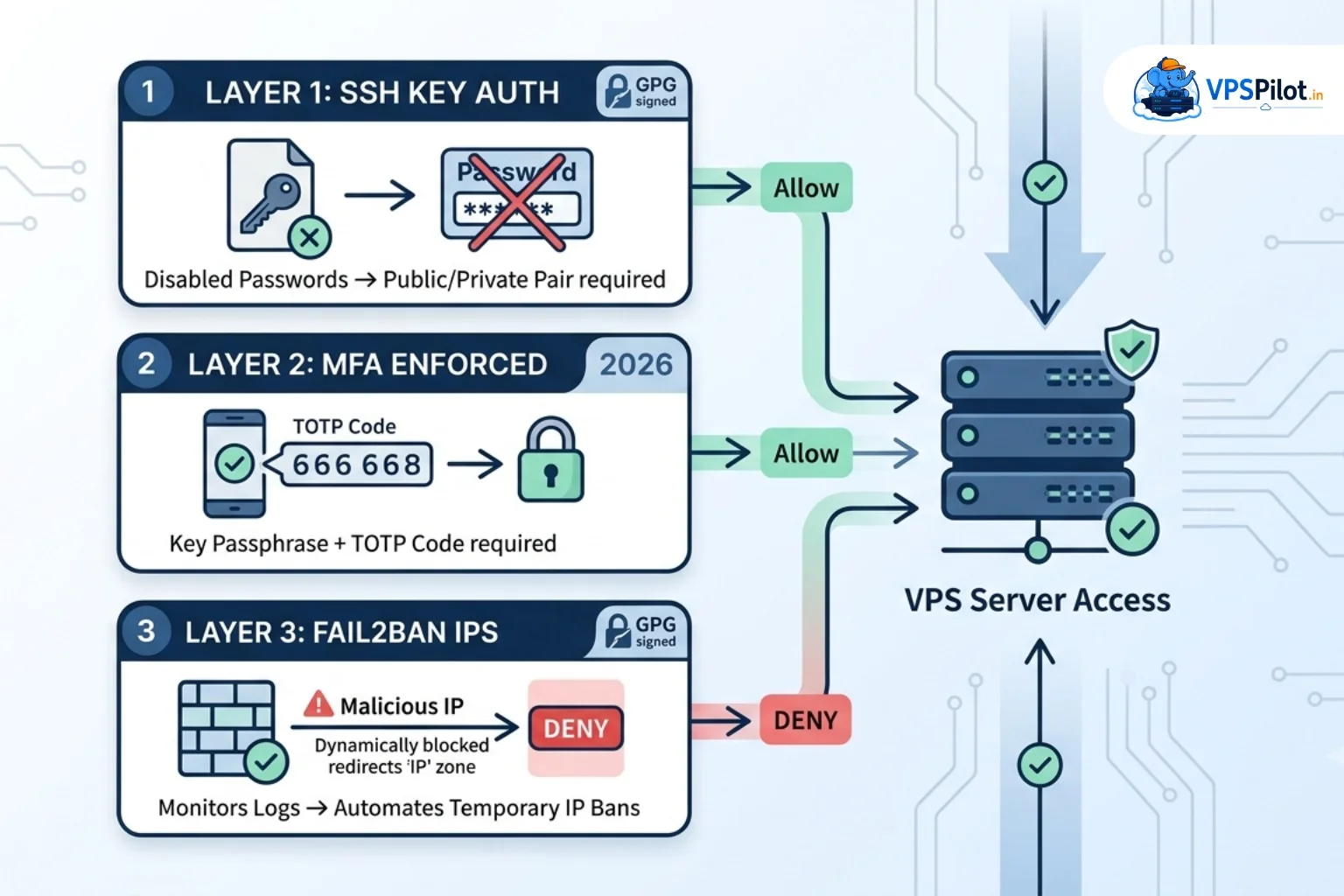
In 2026, a default SSH configuration will no longer be enough to protect your VPS from automated threats. As cyber-attacks become more sophisticated, relying solely on passwords is a significant security risk. By implementing SSH keys, Multi-Factor Authentication (MFA), and Fail2Ban, you create a robust, multi-layered defense that keeps attackers at bay.
Here is how you can secure your SSH access in three essential steps.
Secure SSH in Three Essential Steps
1. Eliminate Password Authentication with SSH Keys
Passwords are vulnerable to brute-force attacks. SSH keys provide a much more secure alternative by using a public-key pair: a public key stored on your server and a private key kept securely on your local machine.
Generate your keys
Use ssh-keygen -t ed25519 on your local computer to create a secure key pair.
Transfer the key
Use ssh-copy-id user@your_server_ip to upload your public key to the server securely.
Disable password login
Edit your SSH configuration file (/etc/ssh/sshd_config) and set PasswordAuthentication no. Disabling password authentication ensures that even if an attacker guesses your password, they cannot log in without the physical private key file.
2. Enforce Multi-Factor Authentication (MFA)
Even if your private key is stolen, MFA adds a vital second layer of protection. It requires something you have (a mobile app or hardware token) in addition to something you know (your key’s passphrase).
Install Google Authenticator
Use the libpam-google-authenticator package on your server.
Configure PAM
Update the Pluggable Authentication Modules (PAM) to require a Time-based One-Time Password (TOTP) code during SSH login.
The result
Every time you SSH into your server, you will be prompted for your SSH key passphrase and a one-time code generated by your mobile app, providing two-factor protection.
3. Implement Perimeter Defense with Fail2Ban
While keys and MFA secure your identity, Fail2Ban secures your perimeter. It serves as an automated security guard, monitoring your server logs for malicious activity.
How it works
Fail2Ban watches for repeated failed login attempts. If an IP address exceeds a defined number of failed attempts within a specific timeframe, Fail2Ban automatically updates your firewall (UFW or nftables) to temporarily or permanently ban that IP address.
Setup
Install Fail2Ban and create a “jail” specifically for SSH. It comes with pre-configured filters that are highly effective at stopping automated brute-force botnets that scan for open SSH ports.
Why this approach works
Security is about defense-in-depth.
- SSH keys prevent credential theft.
- MFA provides a secondary layer of security if your device is compromised.
- Fail2Ban prevents automated bots from even attempting to brute-force your login, keeping your logs clean and your CPU resources focused on your applications rather than processing malicious traffic.
By following this checklist, you significantly harden your server against the most common entry points used in 2026. Secure your infrastructure today—because your server’s safety is the foundation of your entire deployment.